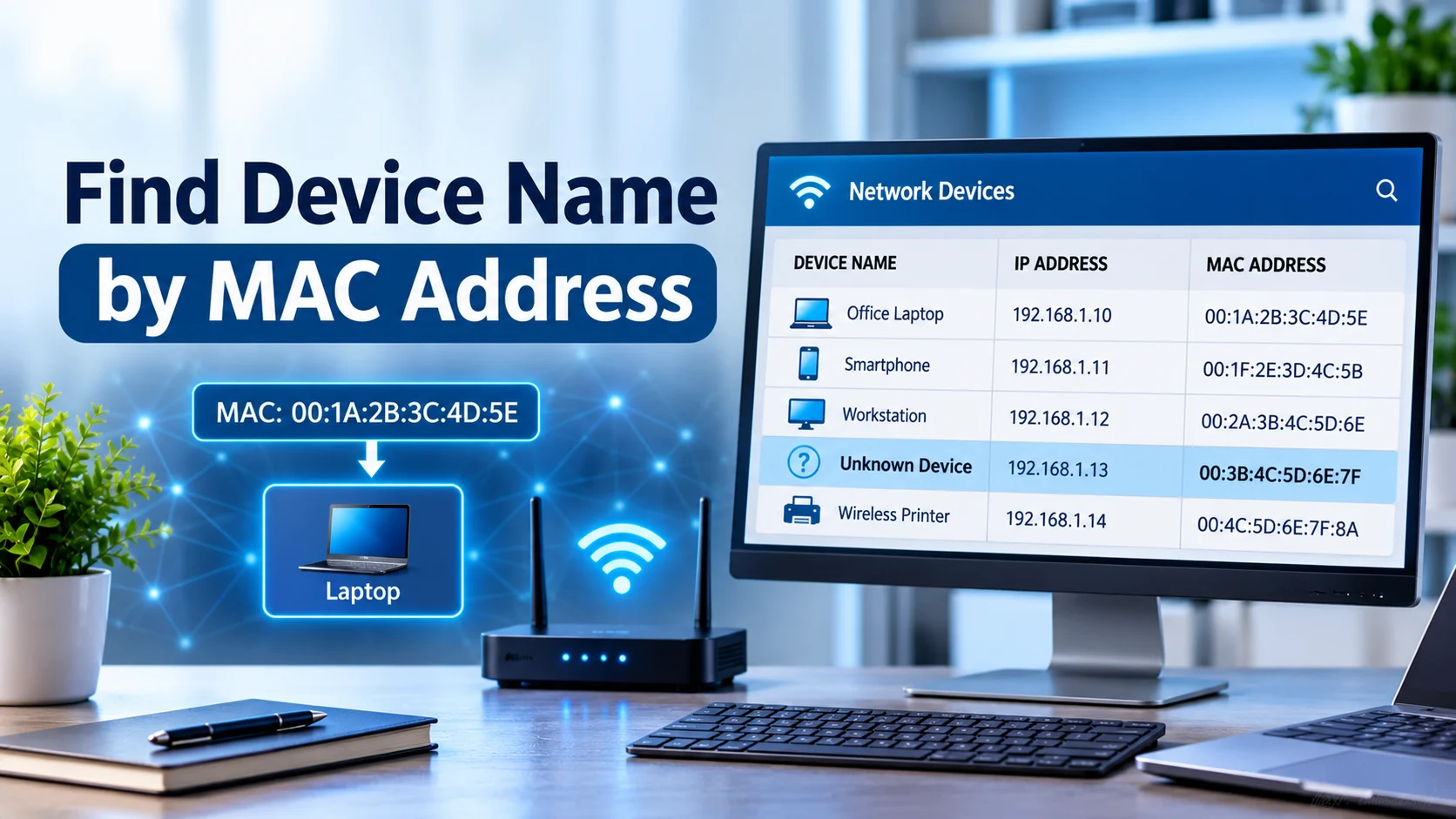
Finding a device name by MAC address is a useful way to identify unknown devices connected to your home, office, or business network. A MAC address is a unique hardware identifier assigned to a network interface, and it can help you locate a device’s IP address, hostname, or manufacturer when you have access to the same local network.
You can find a device name by MAC address using your router’s connected-device list, Windows Command Prompt, PowerShell, macOS Terminal, or Linux network utilities. However, a MAC address does not always reveal the exact device name directly. The result depends on your network configuration, available device information, and the device shares its hostname.
In this guide, you will learn how to identify a device using its MAC address, explore different operating system methods, understand common lookup limitations, and troubleshoot unknown devices connected to your network.
What Is a MAC Address?
A MAC address (Media Access Control address) is a hardware-level identifier associated with a network interface. It helps devices communicate with one another over a local network, such as a Wi-Fi or Ethernet connection.
A traditional MAC address is usually represented as six groups of two hexadecimal characters.
For example:
00:1A:2B:3C:4D:5E
Other common formats include:
00-1A-2B-3C-4D-5E001A.2B3C.4D5E
A MAC address typically contains 48 bits, represented by 12 hexadecimal characters.
Each network interface generally has its own MAC address. For example, a laptop may have separate addresses for its Wi-Fi and Ethernet adapters.
What Information Can a MAC Address Reveal?
A MAC address can help you discover several types of network information, depending on the tools available.
- Manufacturer: The registered manufacturer associated with the address prefix may be identifiable.
- IP address: Your router or local network’s ARP table may associate the MAC address with an IP address.
- Hostname: A router, network discovery tool, or name-resolution service may reveal the device’s hostname.
- Network interface: You can sometimes determine the address belongs to a Wi-Fi, Ethernet, or virtual network adapter.
- Connection status: Router administration pages may show a device is currently connected or was recently connected.
It is important to understand that a MAC address alone does not normally contain a device’s hostname, owner’s name, or exact model.
What Is a Device Name or Hostname?
A device name is a human-readable identifier assigned to a computer, smartphone, printer, or other network-connected device.
It helps users and network administrators recognize devices without remembering their numerical network addresses.
For example:
| Device | Example Device Name |
|---|---|
| Windows laptop | DESKTOP-OFFICE |
| MacBook | Johns-MacBook |
| Smartphone | Samsung-Galaxy |
| Network printer | HP-Office-Printer |
| Desktop computer | WORKSTATION-01 |
| Raspberry Pi | raspberrypi |
A hostname can be configured by the device owner, operating system, manufacturer, or network administrator.
MAC Address vs. IP Address vs. Hostname
These three terms are related but serve different purposes.
| Term | Meaning | Example |
|---|---|---|
| MAC address | Identifies a network interface at the link layer | 00:1A:2B:3C:4D:5E |
| IP address | Identifies a network endpoint for IP communication | 192.168.1.105 |
| Hostname | Human-readable name assigned to a device | OFFICE-LAPTOP |
A MAC address helps identify a network interface on a local network, an IP address supports communication between networked devices, and a hostname makes a device easier to recognize.
Understanding these differences makes it easier to find the correct device name.
How to Find Device Name by MAC Address
There are several ways to identify a device using its MAC address. The easiest approach is usually checking your router’s connected-device list. If you have access to a computer on the same local network, you can also use built-in operating system commands.
Here are five practical methods.
Method 1: Find Device Name Through Your Router
Your Wi-Fi router is often the best place to start when identifying an unknown device.
Most modern routers maintain a list of connected devices. This list may include the device name, IP address, MAC address, connection type, and connection status.
Step-by-Step Instructions
Step 1: Connect to your network.
Connect your computer or smartphone to the same Wi-Fi network managed by the router.
Step 2: Open your router’s administration page.
Enter your router’s local gateway address in a web browser.
Common private gateway addresses include:
192.168.1.1192.168.0.110.0.0.1
Your router may use a different address. You can find the correct gateway through your device’s network settings.
Step 3: Sign in to the router.
Enter your router’s administrator username and password.
Use credentials provided by your network administrator or the router’s authorized setup process.
Step 4: Find the connected-device list.
Look for a section with a name such as:
- Connected Devices
- Device List
- Attached Devices
- DHCP Clients
- Wireless Clients
- Network Map
The exact menu name depends on the router manufacturer and firmware.
Step 5: Search for the MAC address.
Compare the MAC address you want to identify with the addresses displayed in the device list.
If the router has a hostname or device-name field, you may be able to identify the device immediately.
Step 6: Check additional information.
Look at the corresponding IP address, connection type, and manufacturer details if available.
For example:
| Device Name | IP Address | MAC Address | Connection |
|---|---|---|---|
| OFFICE-LAPTOP | 192.168.1.105 | 00:1A:2B:3C:4D:5E | Wi-Fi |
| HP-PRINTER | 192.168.1.110 | 10:2B:3C:4D:5E:6F | Ethernet |
| ANDROID-PHONE | 192.168.1.115 | 20:3C:4D:5E:6F:70 | Wi-Fi |
These are illustrative examples, not actual network records.
Why use this method?
A router can combine information from DHCP leases, network discovery, and device announcements. This makes it a convenient option for identifying devices without installing additional software.
However, some routers display only a generic label, IP address, or MAC address instead of the actual hostname.
Method 2: Find a Device Name by MAC Address on Windows
Windows provides built-in networking commands that can help you connect a MAC address with an IP address and, in some situations, discover the associated hostname.
The important distinction is that the ARP table does not directly store device names. You generally need to find the corresponding IP address first.
Step 1: Open Command Prompt
Press:
Windows + R
Type:
cmd
Press Enter to open Command Prompt.
Step 2: Display the ARP Table
Enter the following command:
arp -a
Press Enter.
Windows displays known IPv4-to-MAC address mappings.
Example output:
Interface: 192.168.1.100

Internet Address      Physical Address      Type
192.168.1.105         00-1a-2b-3c-4d-5e     dynamic
192.168.1.110         10-2b-3c-4d-5e-6f     dynamic
192.168.1.115         20-3c-4d-5e-6f-70     dynamic
Find the MAC address you are investigating and note its corresponding IP address.
For example:
- MAC address:
00-1A-2B-3C-4D-5E - IP address:
192.168.1.105
The ARP table may not contain every connected device. It generally shows entries learned by your computer on the local network.
Step 3: Try to Discover the Hostname
Once you have the IP address, try:
ping -a 192.168.1.105
The -a option attempts to resolve the IP address to a hostname.
If reverse name resolution is available, Windows may display a name before sending the ping requests.
You can also try:
nbtstat -A 192.168.1.105
This command queries NetBIOS information for a remote IPv4 address.
It may reveal the computer name if the device supports NetBIOS over TCP/IP and the relevant services are accessible.
However, this method will not work reliably with every device, especially many modern smartphones and non-Windows devices.
Step 4: Use PowerShell to Find the MAC-to-IP Mapping
You can also use PowerShell to search the neighbor table.
Open PowerShell and enter:
Get-NetNeighbor -AddressFamily IPv4To filter for a particular MAC address, use:
Get-NetNeighbor -AddressFamily IPv4 |
Where-Object {
    $_.LinkLayerAddress -eq "00-1A-2B-3C-4D-5E"
}
Replace the example MAC address with the one you want to investigate.
If an entry is available, the output may show its associated IP address and neighbor status.
You can then try to resolve the hostname using:
Resolve-DnsName -Name 192.168.1.105 -Type PTRReplace the example IP address with the actual address you found.
This command attempts a reverse DNS lookup. It will only return a useful hostname if an appropriate PTR record exists.
Important: Windows commands can help identify a device, but they cannot guarantee that every MAC address will resolve to a hostname.
Method 3: Find Device Name by MAC Address on macOS
Mac users can use Terminal and built-in networking utilities to investigate devices on their local network.
The process involves checking the ARP table, finding the associated IP address, and attempting hostname resolution.
Step 1: Open Terminal
You can open Terminal using either method:
- Open Spotlight Search and type Terminal.
- Navigate to Applications, then Utilities, and select Terminal.
Step 2: Display the ARP Table
Enter:
arp -aPress Enter.
macOS displays known local network mappings between IP addresses and MAC addresses.
Example:
? (192.168.1.105) at 00:1a:2b:3c:4d:5e on en0
? (192.168.1.110) at 10:2b:3c:4d:5e:6f on en0
Locate your target MAC address and note the corresponding IP address.
Step 3: Look Up the Hostname
After identifying the IP address, enter:
host 192.168.1.105Alternatively, try:
nslookup 192.168.1.105These commands attempt reverse DNS resolution.
If a reverse DNS record exists, the result may contain the device’s hostname.
Step 4: Check Local Name Resolution
Some devices advertise their names through Bonjour and Multicast DNS (mDNS).
For example, a device might be reachable using a name ending in:
.local
You can test a known or discovered local hostname with:
ping device-name.localReplace device-name with the actual hostname.
This approach depends on the device advertising an mDNS name and your network allowing local multicast discovery.
When is this method useful?
The macOS approach is helpful when managing a home network, troubleshooting local connectivity, or identifying devices connected to an Apple computer’s Wi-Fi or Ethernet network.
Method 4: Find a Device Name by MAC Address on Linux
Linux includes several networking utilities that help administrators identify devices on a local network.
You can use the ip command, the ARP table, and network discovery tools.
Step 1: Open the Terminal
Open your Linux terminal application.
Step 2: Display Neighbor Information
Enter:
ip neighThis command displays the neighbor table, including IP addresses and associated link-layer addresses.
Example:
192.168.1.105 dev wlan0 lladdr 00:1a:2b:3c:4d:5e REACHABLE
192.168.1.110 dev wlan0 lladdr 10:2b:3c:4d:5e:6f STALE
Locate your target MAC address and record its associated IP address.
You can also use:
arp -aif the appropriate ARP utility is installed.
Step 3: Try Reverse DNS Lookup
Once you have the IP address, run:
host 192.168.1.105Or:
getent hosts 192.168.1.105These commands may return a hostname if your DNS or local name-resolution configuration provides one.
Step 4: Use Nmap for Network Discovery
Nmap is a network discovery and security auditing utility.
If it is installed and you are authorized to scan the network, you can use:
nmap -sn 192.168.1.0/24Replace the example subnet with your actual local network range.
Nmap attempts to discover available hosts. On a local Ethernet network, it may also identify MAC addresses and manufacturer information.
To investigate a specific IP address, you can try:
nmap -sn 192.168.1.105A discovered hostname may appear if name resolution succeeds.
However, Nmap does not guarantee that a device name will be available. Some devices do not advertise hostnames, and firewalls or network settings can limit discovery.
Method 5: Use an Online MAC Address Lookup Tool
An online MAC address lookup tool can help identify the registered manufacturer associated with a MAC address.
These tools generally use an IEEE Organizationally Unique Identifier (OUI) database.
The OUI is associated with the manufacturer or organization assigned a block of MAC addresses.
How to Use a MAC Address Lookup Tool
Follow these steps:
- Find the MAC address of the device you want to investigate.
- Open a reputable MAC address lookup service.
- Enter the MAC address into its search field.
- Submit the address.
- Review the manufacturer information returned by the lookup.
For example, a lookup might identify an address prefix associated with a network hardware manufacturer.
This information can help narrow down the type of device or company associated with the network interface.
Can an Online MAC Lookup Reveal the Device Name?
Not usually.
A manufacturer lookup identifies the registered organization associated with an address prefix. It does not normally provide the device’s custom hostname, owner’s identity, or exact physical location.
For example, a result identifying a manufacturer does not necessarily tell you the device is a laptop, smartphone, wireless access point, or another product.
You need local network information to establish the device’s actual hostname.
How to Identify an Unknown Device Connected to Your Wi-Fi
Sometimes, you may notice an unfamiliar device in your router’s connected-device list.
It might have an unfamiliar hostname, a generic label, or only a MAC address.
Instead of immediately assuming that the device is unauthorized, use a systematic identification process.
1. Check the MAC Address
Write down the complete MAC address displayed by your router.
Make sure you compare all six hexadecimal pairs, not just the first few characters.
2. Check the Manufacturer
Use the MAC address prefix to investigate the registered manufacturer.
This may provide a clue about the network hardware, but remember that manufacturer identification is not proof of the device’s exact model.
3. Compare the IP Address
Check the IP address associated with the MAC address.
You can compare it with the network information displayed on your computers, phones, printers, and other devices.
4. Check Your Personal Devices
Look at the network settings on devices you own.
Compare their current private or hardware MAC addresses with the address listed in your router.
This is particularly important because modern smartphones and computers may use randomized private MAC addresses for Wi-Fi privacy.
5. Check the Connection Type
Determine the unknown entry is connected through:
- Wi-Fi
- Ethernet
- A wireless access point
- A network extender
- A mesh networking node
Some routers also show historical or inactive devices, so check the connection status before taking action.
6. Secure Your Network if Necessary
If you cannot identify a device and have a legitimate security concern:
- Review your Wi-Fi security settings.
- Use WPA2-AES or WPA3 where supported.
- Change your Wi-Fi password if you suspect unauthorized access.
- Disable WPS if it is not needed.
- Update your router’s firmware.
- Review connected devices again after reconnecting your own equipment.
If your router supports device notifications or access controls, these features can help you monitor future connections.
Why Can’t I Find a Device Name Using a MAC Address?
There are several reasons a MAC address lookup may not return a recognizable device name.
1. The Device Does Not Share Its Hostname
Some devices do not announce their hostname to other devices on the network.
A router may therefore display only a MAC address or a generic device label.
2. The Device Is Not Currently Connected
Your ARP table may contain only recently learned or currently relevant network mappings.
If the device has disconnected or the entry has expired, its MAC address may no longer appear.
3. Reverse DNS Is Not Configured
A reverse DNS lookup requires an appropriate PTR record.
If no record exists, a lookup may return an error even when the device is active and reachable.
4. MAC Address Randomization
Modern operating systems may use randomized MAC addresses when connecting to Wi-Fi networks.
This privacy feature can make a device appear under a different address than the one printed on its hardware or displayed in another network setting.
For example, a smartphone may use a private Wi-Fi address instead of its permanent hardware address.
5. Network Segmentation
Your device may be connected to a different VLAN, guest network, or subnet.
In this situation, your computer might not be able to access the MAC address information of the other device directly.
Routers and network infrastructure may still have relevant information.
6. The MAC Address Is Not a Globally Reachable Identifier
A MAC address is primarily used for communication on a local network segment.
Routers normally replace the link-layer frame information when forwarding IP packets between networks.
Therefore, you cannot generally enter a MAC address into an internet search tool and expect it to reveal a remote device’s name.
Is It Possible to Find a Device Name by MAC Address Without an IP Address?
Sometimes, yes, but it depends on the information available.
If your router displays both the MAC address and hostname, you may identify the device without manually looking up its IP address.
However, when using Windows, macOS, or Linux commands, you will generally need to find the corresponding IP address before attempting hostname resolution.
The typical identification process is:
- Find the MAC address.
- Locate its associated IP address in the local neighbor table or router.
- Attempt hostname resolution.
- Verify the result using the router’s device list or the device’s own network settings.
This process is more reliable than assuming that the MAC address directly contains a device name.
Is a MAC Address Enough to Identify the Exact Device?
No. A MAC address alone is not always sufficient to determine the exact device.
It may help identify a registered manufacturer, network interface, or local network mapping. However, it does not necessarily reveal the product model, operating system, device owner, or custom hostname.
For more reliable identification, combine multiple sources:
- MAC address
- IP address
- Hostname
- Manufacturer information
- Router connection records
- Device operating system
- Network connection type
Using several attributes together provides a better understanding of an unknown network device.
FAQs
1. Can I find a device name using a MAC address?
Yes. You can sometimes find a device name using its MAC address through your router’s connected-device list or local network discovery tools. You may first need to identify the associated IP address and then perform a hostname lookup.
2. How do I find the hostname from a MAC address?
First, locate the MAC address in your router’s device list or local ARP table. Find its associated IP address and use a hostname resolution command, such as ping -a on Windows or host on Linux and macOS.
3. Can I find a device name by MAC address on Windows?
Yes. Open Command Prompt and run arp -a to view available MAC-to-IP mappings. After finding the corresponding IP address, try ping -a IP_ADDRESS to resolve its hostname.
4. Can I identify an unknown device connected to my Wi-Fi?
Yes. Open your router’s administration page and check the connected-device list. Compare the MAC addresses, IP addresses, hostnames, and manufacturer information to identify unfamiliar devices.
5. Does a MAC address reveal the device manufacturer?
A MAC address prefix may identify the organization registered to a particular address block through IEEE allocation records. However, manufacturer identification does not always reveal the exact device model or product.
6. Can I find a device name using a MAC address online?
Online MAC lookup services generally identify the registered manufacturer associated with a MAC address prefix. They usually cannot reveal a device’s private hostname because that information is not contained in the MAC address itself.
7. What is the difference between a MAC address and a hostname?
A MAC address is a hardware-level network identifier, while a hostname is a human-readable name assigned to a device. A MAC address helps identify a network interface, whereas a hostname makes a device easier to recognize.
8. Why does my router show an unknown device name?
Your router may display an unknown device because the device does not share its hostname, uses a randomized private MAC address, or has not provided identifying information through the network. Generic router labels can also make familiar devices appear unfamiliar.
9. Can I find a device’s IP address using its MAC address?
Yes, if the device is visible in your local network’s ARP or neighbor table, or in your router’s DHCP client list. These sources can associate a MAC address with its current or recently assigned IP address.
10. Can I find a device name by MAC address without connecting to the same network?
Generally, no. MAC addresses are used for local network communication and are not normally routed across the internet. You typically need access to the relevant local network or its router records to identify the associated device.
Conclusion
Finding a device name by MAC address is possible through several methods, including router administration pages, Windows Command Prompt, PowerShell, macOS Terminal, and Linux networking utilities. The most convenient approach is usually checking your router’s connected-device list, while command-line tools can help you match a MAC address with an IP address and investigate its hostname.
Remember that a MAC address does not automatically reveal a device’s exact name or model. Manufacturer lookups, reverse DNS, and local network discovery provide additional clues, but results depend on device settings and network configuration. By combining these methods, you can identify unfamiliar devices more effectively and manage your local network with greater confidence.
Discover More Related Articles:
- Lubiprostone Brand Name | Uses, Available Brands & Generic Information In 2026
- Font Name | Meaning, Types, Popular Examples & How to Identify Fonts In 2026
- Color Palette Generator From Name | Create Unique Color Combinations in 2026